Cameras and encoders
Stream from a GoPro to a custom RTMP destination
Point a GoPro's built-in live stream at any RTMP server, including an IRLRelayr ingest, and keep it stable on a phone hotspot.
- For
- IRL streamers
- Level
- beginner
- Read time
- 5 min
- Updated
- Sep 8, 2026
What this covers
Recent GoPro cameras can publish a live stream on their own, without a phone app acting as the encoder and without a laptop. The camera joins a Wi-Fi network, encodes on board, and pushes RTMP straight to a server you choose. That server can be a platform's ingest, your own RTMP endpoint, or an IRLRelayr ingest that then fans the feed out to your destinations.
The trade is control. The camera exposes a small set of options and does not reconnect on its own the way a dedicated bonding encoder does, so most of the work is in choosing a realistic resolution and a network the camera can hold.
Treat the GoPro as an encoder that happens to have a lens attached. Every rule about upload headroom still applies.
What you need
- A GoPro that supports live streaming. HERO7 Black and later models, plus MAX, expose a live-stream mode; older and non-Black models generally do not.
- The GoPro Quik mobile app, which is where live streaming is configured. The camera menus alone cannot enter an RTMP address.
- A Wi-Fi network the camera can join. This is usually a phone hotspot when you are mobile. The camera does not have its own cellular radio.
- The RTMP URL and stream key for your destination.
- A charged battery, or external power. Live streaming plus Wi-Fi is one of the camera's heaviest workloads.
Get the ingest address
For an IRLRelayr ingest, open the ingest in the console and copy its RTMP server URL and stream key. For any other destination, the provider gives you the same two values, sometimes labelled "server" and "key".
The GoPro app asks for a single RTMP field rather than a separate server and key, so join the two values with a slash and paste the result:
Server:  rtmp://ingest.example.com/live
Key:     abcd-1234-efgh-5678
Enter:   rtmp://ingest.example.com/live/abcd-1234-efgh-5678
Treat the stream key as a password. Anyone holding it can publish to your ingest. If you paste it into a chat or a screenshot, rotate it.
Set up the stream
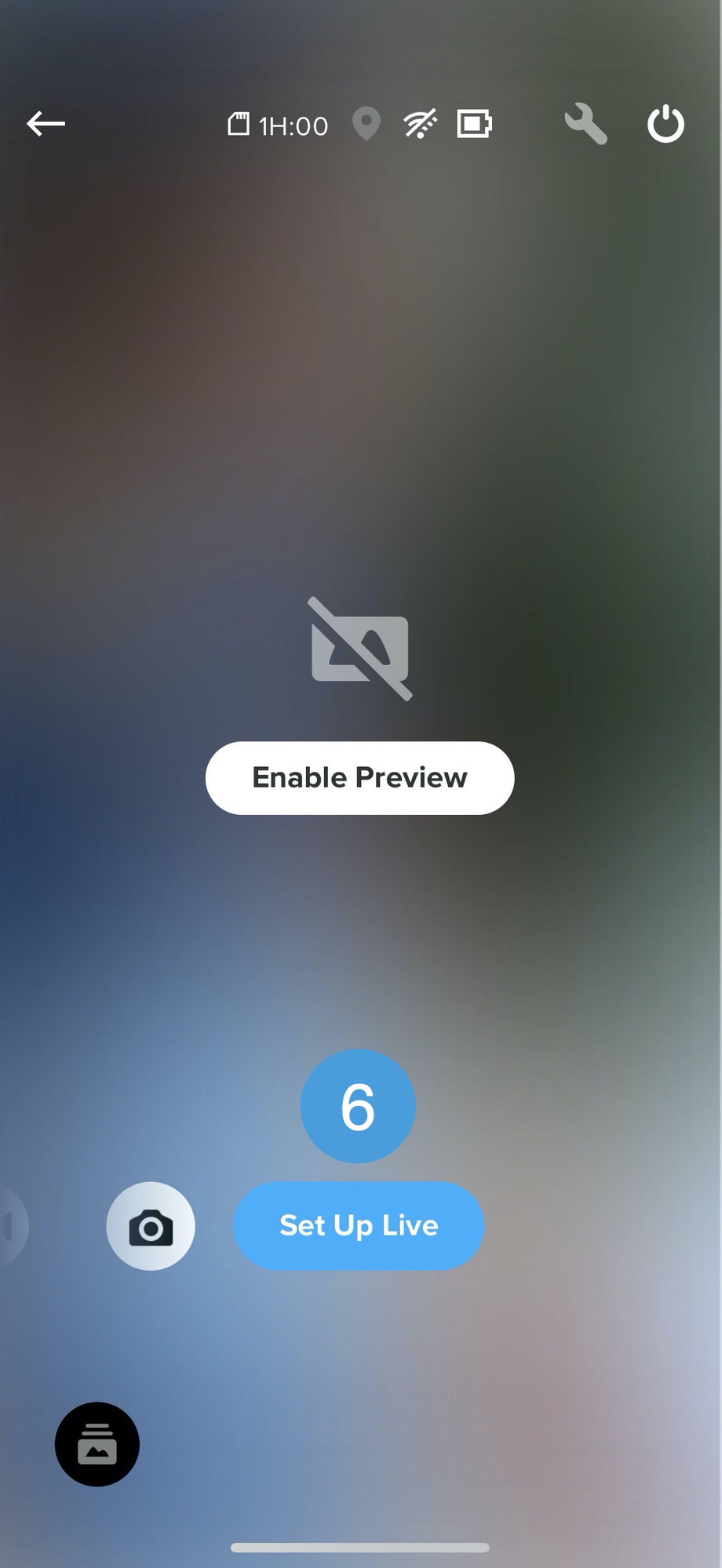
Connect the camera to the app. Open GoPro Quik and select your camera. Once it pairs, the camera control screen offers Set Up Live beneath the shutter button.
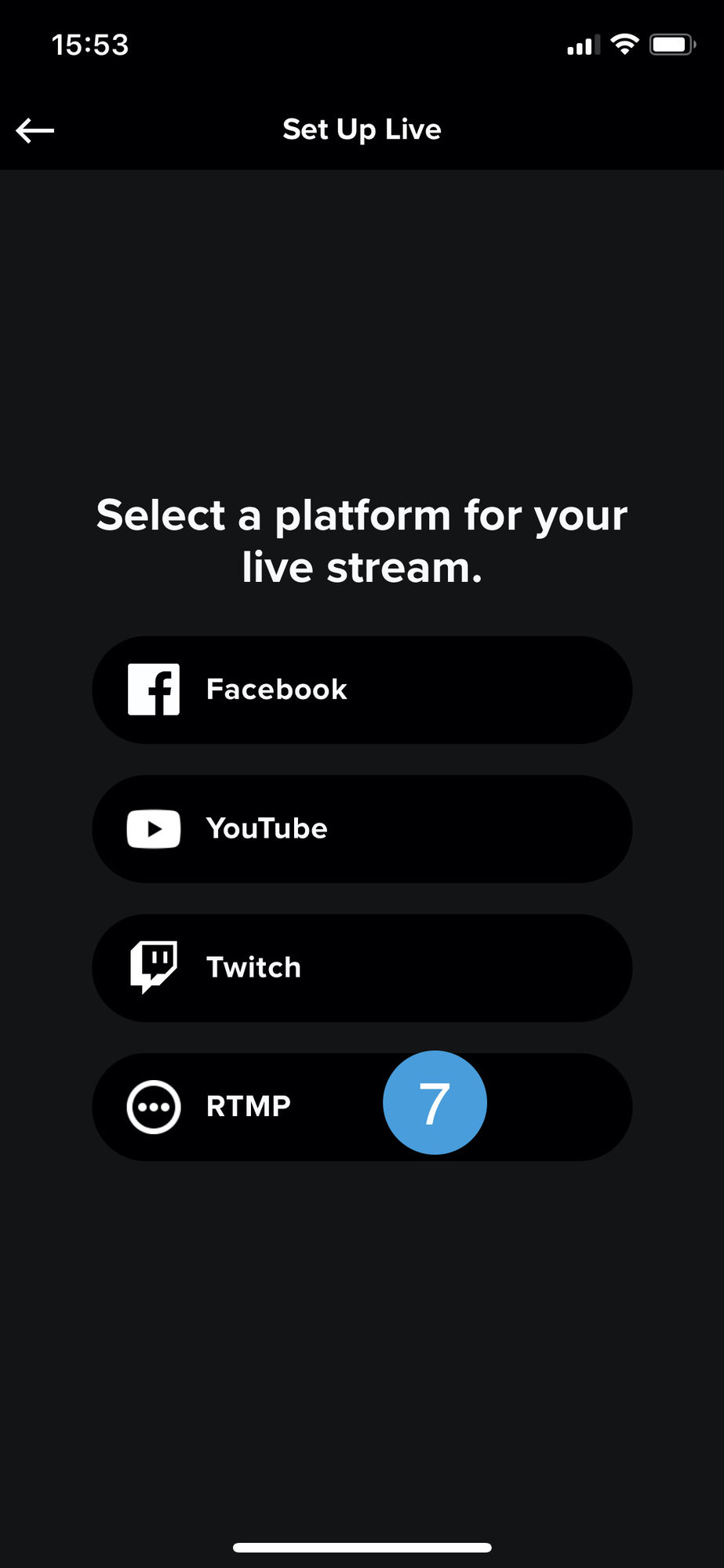
Choose RTMP as the platform. The app lists Facebook, YouTube, and Twitch as one-tap integrations, and RTMP for everything else. RTMP is the option you want for an IRLRelayr ingest or any other custom server.
Fill in the stream settings. The RTMP setup screen collects everything the camera needs on one page.
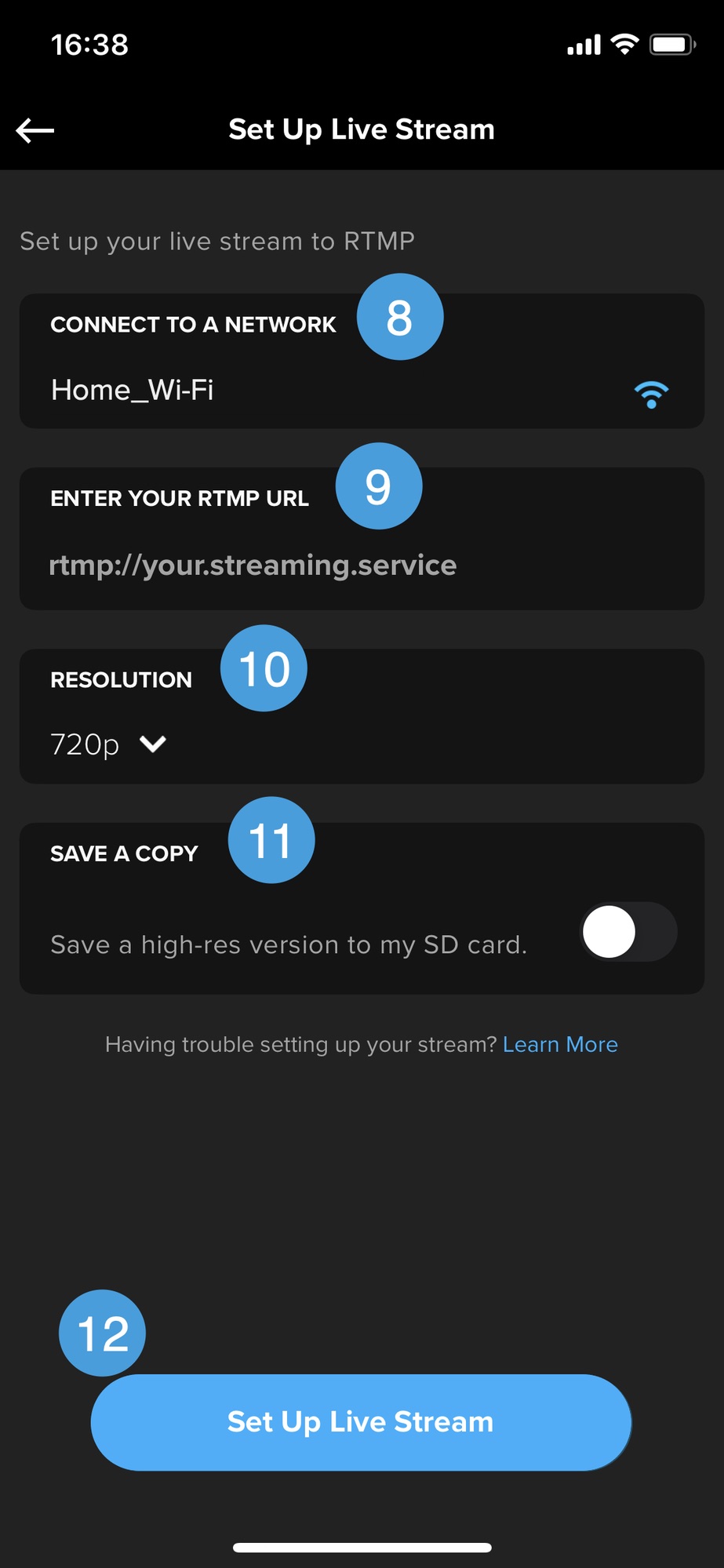
- Connect to a network. Pick the Wi-Fi network the camera will use, usually your phone's hotspot. Choose the 2.4 GHz band if the camera cannot see or hold a 5 GHz network; less throughput and more range is the right trade here.
- Enter your RTMP URL. Paste the combined server-plus-key string from above. There is no separate key field.
- Resolution. 720p or 1080p, depending on the model.
- Save a copy. Toggle this on to keep a high-resolution recording on the SD card while you stream. The local file is unaffected by whatever the network does to the live feed, so it is worth enabling on anything you might edit later.
Start the stream. Tap Set Up Live Stream, then confirm on the camera when it prompts. Frame the shot before you go live; once streaming, the camera screen shows a basic status readout rather than a full preview.
Resolution is the only quality control you get
The app exposes resolution and nothing else. There is no bitrate field, no keyframe interval, and no rate-control choice — the camera picks an encoder configuration for the resolution you selected. That makes the decision simple, and it also means the only way to ask for less bandwidth is to drop to 720p.
| Situation | Choose |
|---|---|
| Phone hotspot, moving or in a crowded area | 720p |
| Phone hotspot, strong stationary signal | 720p, or 1080p once you have tested it |
| Venue Wi-Fi with known, measured upload | 1080p |
Test at the location before you rely on it. A GoPro that runs out of upload does not degrade gracefully: it stalls and usually ends the stream rather than dropping quality or reconnecting. If a route is marginal at 1080p, stay at 720p rather than hoping the connection holds.
When something goes wrong
The stream never starts. Almost always the address. Check for a missing or doubled slash between the URL and the key, a trailing space from a copy and paste, and that you entered rtmp rather than rtmps unless the destination asked for it.
The camera connects but the destination shows nothing. The key may belong to a different ingest, or the ingest may already have another publisher connected. Disconnect anything else pointing at that ingest and try again.
The camera will not join the hotspot. Switch the hotspot to 2.4 GHz, shorten the network name and password, and turn off any "maximize compatibility" or band-steering option that makes the phone advertise both bands under one name.
The stream drops after a few minutes. Usually heat or upload. Take the camera out of its housing, drop to 720p, and retest in the same place.
Audio is unusable. The built-in microphones are close to the body and pick up wind and handling noise. A media mod or an external microphone adapter is the only real fix.
Where IRLRelayr fits
Pointing the camera at an IRLRelayr ingest instead of directly at a platform means the camera keeps doing the one thing it is good at, and everything else happens server-side: overlays, scene changes, and fanning the same feed out to every destination without asking the camera for more upload.
It also means a dropped GoPro connection is a problem at your ingest rather than a dead stream on every platform at once.